Adding Borders
It is also possible to add a one, two, three, or four-sided border. Special effects can be used to bevel the border or create the illusion of dimensionality. In addition to adding a border to a graphic, you can also add a bevel-style frame. When you click the Bevel button on the Pictures toolbar, FrontPage transforms the edge of your graphic into a bevel-style frame. You can continue to click the Bevel button until you are satisfied with the degree of the bevel.
Add Borders to a Graphic
 | Click the View menu, click Page, and then open the Web page you want to use. |
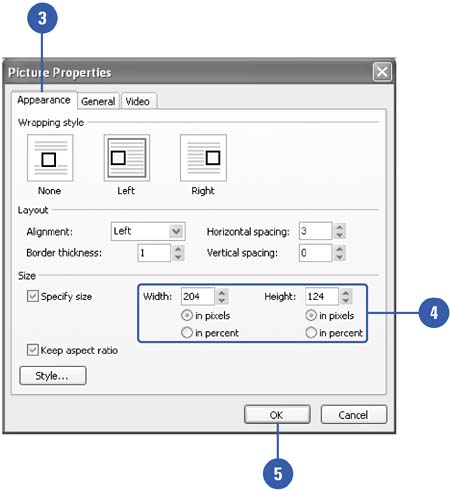
 | Right-click the graphic you want to add a border, and then click Picture Properties. |
 | Click the Appearance tab. |
 | Enter a value for the width and height of the border in pixels. If necessary, experiment to get a sense of how the pixels work. To remove the border, type 0 (zero). |
 | Click OK. |
Add a Beveled Edge Around a Graphic
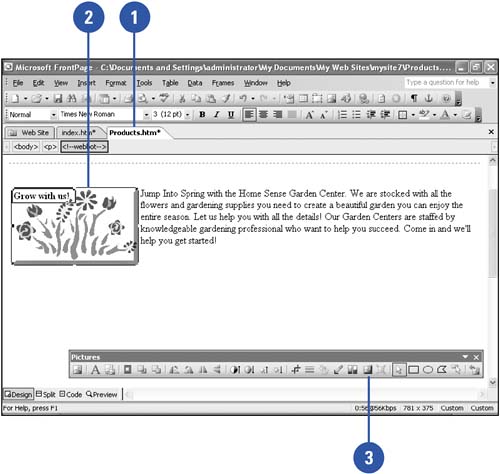
| Click the View menu, click Page, and then open the Web page you want to use. |
| Click the graphic in which you want to add a beveled edge. |
| Click the Bevel button on the Pictures toolbar. |
| Continue to click the Bevel button until you achieve the look you want. |
|
You can undo bevel changes.
If you don't like a bevel change, you can click the Undo button on the Standard toolbar to reverse the last change or several changes. |
|
