| Table of Contents | Previous Next |
10.5 A page to match new friendsMatch finding is another popular application on the Web. For either a Web page to match a handful of people in the Internet or running a dedicated dating agency, you will need a database-type finding and matching technique. For specialized commercial corporations, large databases and powerful search engines are employed. Of course this also includes a charging mechanism. For demonstration purposes, the example in this section contains very few data and was generated by ourselves. You can add more data if you want. No formal search engine is used. We first generate some data with a database-type format and then perform some basic searching and matching techniques with the getElementsByName() function. The main purpose of this example is to show how select box and the function getElementsByName() can be used in a practical application. More importantly, it also shows the power of element collection in a simple way. Element collection is a structural way to understand the DOM and is the gateway to a more advanced study of the so-called DOM Core. We will cover these topics in the next chapter. 10.5.1 The display and data structure of the pageFor simplicity, the client data in our example are restricted to "Sex," "Age Group," "Favorite Hobby," "Location," "Nationality," and "Occupation." The matching criteria are also restricted and only the following matching specifications are imposed.
The "Not Important" criterion means that you can pick that choice and accept all matching ones in that field. Note that the "Occupation" field contains only one option, "Not Important." We feel that occupation is not an important criterion for matching friends. Naturally, six select boxes are needed to perform the tasks. One display area is also specified to show the matching results. The display part of this example is listed in ex10-13.htm.
Example: ex10-13.htm - A Page To Match New Friends

 1: <?xml version="1.0" encoding="iso-88591"?>
 2: <!DOCTYPE html PUBLIC "-//W3C//DTD XHTML 1.0 Transitional//EN"
 3:     "http://www.w3.org/TR/xhtml1/DTD/xhtml1-transitional.dtd">
 4: <html xmlns="http://www.w3.org/1999/xhtml" xml:lang="en" lang="en">
 5: <head><title> A Page To Match New Friends -- ex1013.htm</title></head>
 6: <style>
 7:   .butSt{background-color:#aaffaa;font-family:arial;font-weight:bold;
 8:     font-size:14pt;color:#880000;width:160px;height:30px}
 9:   .txtSt{background-color:#aaffaa;font-family:arial;font-weight:bold;
10:     font-size:16pt;color:#880000;textalign:left}
11: </style>
12: <body style="background:#000088;font-family:arial;font-size:22pt;
13:    color:#ffff00;font-weight:bold">
14:
15: <div style="position:absolute;top:20px;left:200px">
16:   A Page To Match New Friends</div>
17: <table border="5" style="position:absolute;top:80px;left:100px">
18:  <tr><td><textarea id="outMsg" style="width:550px;height:220px"
19:     readonly="true" cols="75" rows="10" class="txtSt">
20:     Matching Results Are Here</textarea></td></tr></table>
21:
22: <table style="position:absolute;left:60px;top:350px;font-size:14pt">
23:  <tr><td>Sex</td>
24:   <td><select id="sexIdx" class="butSt">
25:   <option>Female<option>Male</select></td></tr>
26:  <tr><td>Age Group</td>
27:   <td><select id="ageIdx" class="butSt">
28:   <option>1728</option><option>2942</option>
29:   <option>4358</option></select></td></tr>
30:  <tr><td>Main Interest</td>
31:   <td><select id="hobIdx" class="butSt">
32:   <option>Reading</option><option>Movies</option>
33:   <option>Cooking</option><option>Sports</option></select></td></tr>
34: </table>
35:
36: <table style="position:absolute;left:360px;top:350px;font-size:14pt">
37:  <tr><td>Location</td>
38:    <td><select id="locIdx" class="butSt">
39:    <option>Not Important</option><option>New York</option>
40:    <option>Toyko</option><option>London</option>
41:    <option>Paris</option><option>Others</option></select></td></tr>
42:  <tr><td>Nationality</td>
43:    <td><select id="natIdx" class="butSt">
44:    <option>Not Important</option><option>American</option>
45:    <option>Japanese</option><option>British</option>
46:    <option>French</option><option>Others</option></select></td></tr>
47:  <tr><td>Occupation</td>
48:    <td><select id="occIdx" class="butSt">
49:    <option>Not Important</select></td></tr>
50: </table>
51:
52: <input type="button" onclick="findFriend()" style="position:absolute;
53:   top:470px;left:270px;width:200px;font-family:arial;font-size:14pt"
54:   value="Find New Friends" />
55:
56: <script src="ex10-13a.js"></script>
57: <script src="ex10-13b.js"></script>
58: </body>
59: </html>
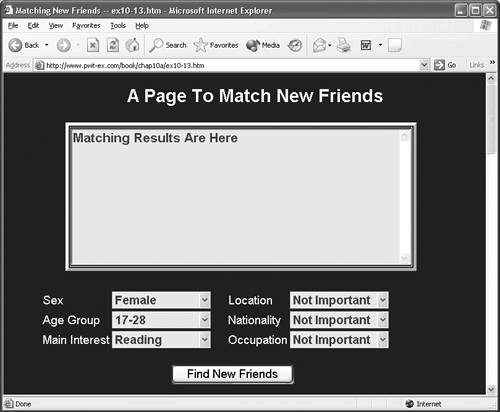
This page uses a text area (lines 1829) as a screen and all matching results are output to this text area. One advantage of using the text area is that it will scroll automatically if you have a long list of matching results. Also, the text area has a read-only status so that no typing is allowed. After the display screen, we have two tables and each table consists of three select boxes. All the matching criteria are stored as options. All select boxes in the second table display "Not Important" as default. If the "Not Important" option is picked, the system will ignore all matching criteria in the box. Some screen shots of this feature in action are shown in Figs 10.22 and 10.23. Figure 10.22. ex10-13.htm
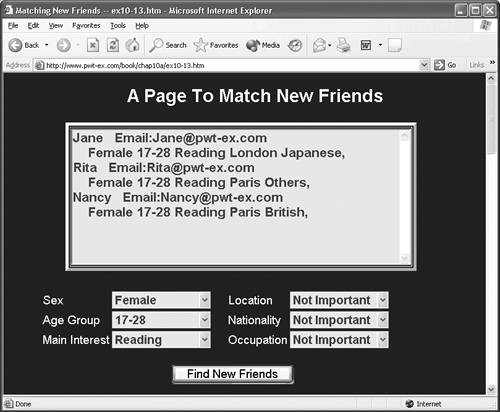
Figure 10.23. Matching results (I)
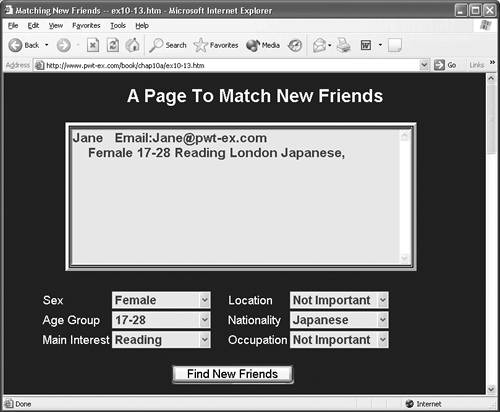
The initial settings for the matching are: Sex Female Location Not Important Age Group 1728 Nationality Not Important Hobby Reading Occupation Not Important A total of 32 clients are created in this example: 16 of them are female and the other 16 are male. All client data are generated by a random number generator. Since a random method is used, you may expect a different result every time you run this page. If you press the Find New Friends button, the search results are shown in the display area with "Name," "Email Addresses," and other information. In this case, you have four matched results (see Fig. 10.23). Based on these results, you can narrow your search further by, for example, selecting the nationality option as "Japanese": Sex Female Location Not Important Age Group 17-28 Nationality Japanese Hobby Reading Occupation Not Important When you press the button again, only the data with the "Japanese" option are displayed (see Fig. 10.24). Figure 10.24. Matching results (II)
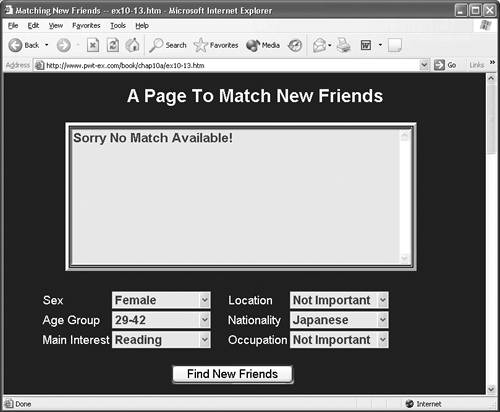
If you change the age group and press the button, then due to the small "database" you may not have a match (see Fig. 10.25). Again, since the data are generated by a random function, you may have a completely different matching result every time you run the page. Figure 10.25. Matching results (III)
Let's now take a look at the format for the client data and see how the data are generated. 10.5.2 Generating the client dataThe driving force of this example lies in the external files ex10-13a.js and ex10-13b.js. The first one is a program used to generate the data. In real applications, data should come from some external databases. However no matter what kinds of databases are used, this page will still work as long as the returned data are in a format consistent or compatible with that shown in this example. The first program file ex10-13a.js is listed as follows:
Example: ex10-13a.js - The ECMAScript For ex10-13.htm
1: fArr = new Array("Katy","Anne","Jane","Rose","Pat","Barba",
2: "Linda","Amanda","Sue","Rita","Sota","Pam","Nancy",
3: "Betty","Susan","Cathy")
4: mArr = new Array("Peter","Tom","Sam","Ban","Andy","Gary",
5: "Simon","Jimmy","Dan","John","Robin","Bob","Paul",
6: "Richard","Nick","Michael")
7: aArr = new Array("1728","2942","4358")
8: hArr = new Array("Reading","Movies","Cooking","Sports")
9: lArr = new Array("New York","Tokyo","London","Paris","Others")
10: nArr = new Array("American","Japanese","British","French","Others")
11:
12: noFemale=16
13: noMale = 16
14:
15: function genData()
16: {
17: outSt = ""
18: dV = new Array()
19: for (jj=0;jj< noFemale;jj++)
20: {
21: ageV = aArr[Math.round(Math.random()*2)]
22: hobbyV = hArr[Math.round(Math.random()*3)]
23: locateV = lArr[Math.round(Math.random()*4)]
24: natV = nArr[Math.round(Math.random()*4)]
25: dV[jj] = fArr[jj] + " Email:"+fArr[jj]+"@pwt-ex.com, "+
26: "Female "+ageV+" "+hobbyV+" "+locateV+" "+natV+","
27: }
28: for (jj= noFemale;jj<(noFemale + noMale);jj++)
29: {
30: ageV = aArr[Math.round(Math.random()*2)]
31: hobbyV = hArr[Math.round(Math.random()*3)]
32: locateV = lArr[Math.round(Math.random()*4)]
33: natV = nArr[Math.round(Math.random()*4)]
34: dV[jj] = mArr[jj-noFemale] + " Email:"+
35: mArr[jj-noFemale]+"@pwt-ex.com, Male " +ageV+" "+hobbyV +
36: " "+locateV+" "+natV+","
37: }
38: headSt = "<div name=\"pa\" id=\"pa\" style=\"visibility:hidden\"> "
39: for (jj=0; jj< dV.length; jj++)
40: {
41: outSt = outSt +headSt +dV[jj]+"</div>"
42: }
43: document.write(outSt)
44: }
45:
46: genData()
The beginning of this program is a series of arrays used to store the options so that the actual data can be converted. They are
In this case, the array fArr contains 16 female names and mArr has 16 male names. The first for-loop in lines 1927 is responsible for generating the information for all female data. The age group, hobby items, locations, and nationalities are generated randomly. The format of the data is specified in lines 2526. For example, typical data may look like Name Email Address Sex Age Hobby Location Nationality Katy Email:Katy@pwt-ex.com Female (1728) Reading New York British The second for-loop is responsible for generating the data for all male names. After all female and male data are generated, 32 XHTML division elements are created in lines 3842. A typical division element is <div name="pa" id="pa" style="visibility:hidden"> Katy Email: Katy@pwt-ex.com, Female(1729) Reading New York British,</div> All 32 elements in this format are returned back to the page by calling the function genData() in line 46. The visibility:hidden condition is used to prevent these data from appearing on the page. When these elements are sent back to the page, you can use getElementsByName() to group them, to search, and to perform some database functions. 10.5.3 Searching and matching the client dataThe grouping, searching, and matching functionalities are defined in another file ex10-13b.js. The first part of this file is listed as follows:
Example: ex10-13b.js - The ECMAScript For ex1013.htm (Part One)

 1: sexIndex = new Array("Female","Male")
 2: ageIndex = new Array("1728","2942","4358")
 3: hobIndex = new Array("Reading","Movies","Cooking","Sports")
 4: locIndex = new Array("Not Important","New York","Tokyo","London",
 5:            "Paris","Others")
 6: natIndex = new Array("Not Important","American","Japanese",
 7:            "British","French","Others")
 8:
 9: function matchSex(llV)
10: {
11:   lIdx = document.getElementById("sexIdx").selectedIndex
12:   if ( llV.indexOf(sexIndex[lIdx]) != -1) return true
13:    else return false
14: }
15:
16: function matchAge(llV)
17: {
18:   lIdx = document.getElementById("ageIdx").selectedIndex
19:   if ( llV.indexOf(ageIndex[lIdx]) != -1) return true
20:    else return false
21: }
22:
23: function matchHob(llV)
24: {
25:   lIdx = document.getElementById("hobIdx").selectedIndex
26:   if ( llV.indexOf(hobIndex[lIdx]) != -1) return true
27:   else return false
28: }
29:
30: function matchLoc(llV)
31: {
32:   lIdx = document.getElementById("locIdx").selectedIndex
33:   if (lIdx ==0) return true
34:   else {
35:     if ( llV.indexOf(locIndex[lIdx]) != -1) return true
36:     else return false
37:   }
38: }
39:
40: function matchNat(llV)
41: {
42:   lIdx = document.getElementById("natIdx").selectedIndex
43:   if (lIdx ==0) return true
44:   else {
45:     if ( llV.indexOf(natIndex[lIdx]) != -1) return true
46:     else return false
47:   }
48: }
49:
This file is responsible for all the matching. It begins with the matching arrays in lines 17: sexIndex locIndex hobIndex ageIndex natIndex These arrays represent the options in each group. The first matching function matchSex is responsible for matching the "Female" or "Male" option:
function matchSex(llV)
{
  lIdx = document.getElementById("sexIdx").selectedIndex
  if ( llV.indexOf(sexIndex[lIdx]) != -1) return true
   else return false
}
When client data is substituted into this function as llV, this function gets the selected item selectedIndex from the select box with id="sexIdx". This value is stored in a local variable lIdx; llV contains the input testing data and sexIndex[lIdx] contains the selected option. Therefore, the statement llV.indexOf(sexIndex[lIdx]) searches the input element llV against the picked option from the "Sex" select box. If there is no match, a value of 1 is returned, otherwise you have a match and it returns true. All other functions
are defined in a similar manner. For the location and nationality functions, if the selectedIndex is 0, you have a "Not Important" situation and this returns true immediately to accept all matches. As mentioned before, the "Occupation" select box is not implemented. The second part of the external file ex10-13b.js listed below controls all operations.
Listing: Continuation Of The ECMAScript ex1013b.js (Part Two)

50: function resetPar()
51: {
52: document.getElementById("sexIdx").selectedIndex =0
53: document.getElementById("ageIdx").selectedIndex =0
54: document.getElementById("hobIdx").selectedIndex =0
55: document.getElementById("locIdx").selectedIndex =0
56: document.getElementById("natIdx").selectedIndex =0
57:   resultSt = "Matching Results Are Here"
58: document.getElementById("outMsg").value= resultSt
59: }
60:
61: function findFriend()
62: {
63:   matchV = 0
64:   var resultSt =""
65:   llV = document.getElementsByName("pa")
66:   for (jj=0;jj< llV.length;jj++)
67:   {
68:    llSt1 = llV.item(jj).firstChild.data
69:    if (matchSex(llSt1) && matchAge(llSt1) && matchHob(llSt1) &&
70:        matchLoc(llSt1) && matchNat(llSt1))
71:   {
72:      matchV =1
73:      lL1 = llSt1.indexOf(",")
74:      if (lL1 !=-1) {
75:       llSt1 = llSt1.substring(0,lL1) +"\n "+
76:               llSt1.substring(lL1+1,llSt1.length)
77:       resultSt = resultSt +llSt1 +"\n"
78:      }
79:    }
80:   }
81:   if (matchV ==0) resultSt = "Sorry No Match Available!"
82:   if (matchV ==-1) resultSt = "Output Result Is Here"
83:   document.getElementById("outMsg").value=resultSt
84: }
85:
86: resetPar()
The first function is this program file is resetPar(). It is called whenever the page is reloaded (line 86) to initialize all select boxes and default display strings. The main function of this example is the function findFriend() defined in lines 6184. The getElementsByName("pa") function returns a collection of all female and male data elements since they all have a name="pa". This means that the object llV in line 65 contains a collection of 32 data. An example of these 32 data may be
<div name="pa" id="pa" style="visibility:hidden">
  Katy   Email: Katy@pwt-ex.com, Female (1728) Reading New York British,</div>
<div name="pa" id="pa" style="visibility:hidden">
  Anne   Email: Anne@pwt-ex.com, Female (2942) Sports Paris Japanese,</div>
            ...  ...  ...     ...  ...  ...
<div name="pa" id="pa" style="visibility:hidden">
  Michael Email: Michael@pwt-ex.com, Male (1729) Movies Tokyo French,</div>
The firstChild.data in line 68 parses the string from the division element so that you have the text data stored as a string in llSt1. For example, the statement llSt1 = llV.item(0).firstChild.data contains the string "Katy Email: Katy@pwt-ex.com, Female(1728) Reading New York British," If all the matching results (lines 6970) return true, you have a match for all criteria. This matched data are then split into two substrings at the first occurrence of the comma ",". The first substring contains the name and email address of the match and the second line contains the options. Both substrings are added to the resultant string resultSt. Finally, all matched results are output to the display area via the statement in line 83. The getElementsByName() function provides a powerful feature on XHTML documents. A more structural study is discussed in the next chapter. |
| Table of Contents | Previous Next |