| Table of Contents | Previous Next |
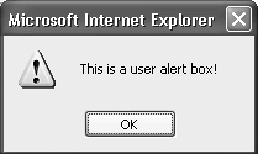
7.2 Basic boxes and controls7.2.1 User alert and confirm boxesScript has a set of built-in functions that can make your life a lot easier. For example, if you want to generate a user alert box, all you have to do is to call the script function alert(). In many cases, a user alert box can provide helpful information to prevent errors and to confirm actions. An alert box is just a small window with an OK button and a warning message (see Fig. 7.3). You can create an alert box easily with the script in ex07-05.txt.
Listing: ex07-05.txt

1:  <body>
2:  <script>
3:    alert("This is a user alert box! ")
4:  </script>
5:  </body>
Figure 7.3. Alert box
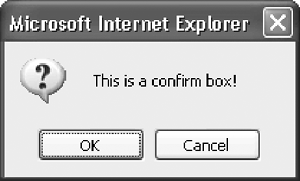
In line 2, if you use <script language="VBScript"> this program will become a VBScript program. As mentioned in the previous section, ECMAScript (or simply script) is used as a general scripting language throughout this book. ECMAScript is a standard and is nicely platform independent. Some information on VBScript will be presented in Chapter 16. Another useful box is the confirm box. This box has two buttons and can return the button values (Fig. 7.4). To create this box, a simple script as shown in ex07-06.txt is used.
Listing: ex07-06.txt

1:  <body>
2:  <script>
3:    var but_val=confirm("This is a confirm box!")
4:    document.write(but_val)
5:  </script>
6:  </body>
Figure 7.4. Confirm box
The variable but_val in line 3 is set to true if the user clicks the OK button. The Cancel button creates a false value. Let's now look at a more practical example. We consider an advertising page on the Web to sell computers. This advertisement uses the alert box to provide more information to the potential buyer. The confirm box is used to confirm and secure the order. Consider the following example code:
Example: ex07-01.htm - Alert And Confirm Boxes
1: <?xml version="1.0" encoding="iso-88591"?>
2: <!DOCTYPE html PUBLIC "-//W3C//DTD XHTML 1.0 Transitional//EN"
3: "http://www.w3.org/TR/xhtml1/DTD/xhtml1-transitional.dtd">
4: <html xmlns="http://www.w3.org/1999/xhtml" xml:lang="en" lang="en">
5: <head><title>Alert and Confirm Boxes - ex0701.htm</title></head>
6:
7: <script>
8: function orderBox()
9: {
10: var confirmBut
11: var msg
12: confirmBut = confirm("Place An Order Now?")
13: if (confirmBut == true)
14: {
15: msg='<span class="textSt">Thank You! <br \>' +
16: 'We will process your order immediately.</span>'
17: document.getElementById("confirmMsg").innerHTML=msg;
18: }
19: else
20: {
21: msg='<span class="textSt">WWW.COMPUTER.COM</span>'
22: document.getElementById("confirmMsg").innerHTML=msg;
23:
24: }
25: }
26:
27: function alertBox()
28: {
29: alert("This computer package is 50% cheaper \nthan others in the market");
30: }
31: </script>
32:
33: <style>
34: .headSt {font-family:arial;font-size:22pt;text-align:center;
35: color:#ff0000;font-weight:bold}
36: .textSt {font-family:arial;font-size:12pt;color:#000088;font-weight:bold}
37: .butSt{font-family:arial;font-size:12pt;color:#008800;
38: background-color:#ffccccc;width:160px;height:26px;font-weight:bold}
39: </style>
40:
41: <body style="background-color:#ccccff;text-align:center">
42:
43: <span class="headSt">Buy This Computer Today !</span>
44: <br /><br /><img src="line1.gif" width="420" height="6" /><br /><br />
45:
46: <span class="textSt">Intel CPU 2000 GHZ</span><br />
47: <span class="textSt">100 GB Hard Disk</span><br />
48: <span class="textSt">512 MB RAM</span><br$/>
49: <span class="textSt">21 Inch Monitor</span><br />
50: <span class="textSt">5 Years On Site Maintenance</span><br /><br />
51: <span class="textSt">For XXX </span>
52:
53: <br /><br /><img src="line1.gif" width="420" height="6" /><br /><br />
54:
55: <input class="butSt" type="button" value="More Information"
56: onClick="alertBox()" />  
57: <input class="butSt" type="button" value="Order"
58: onClick="orderBox()" /><br /><br />
59:
60: <span id="confirmMsg" class="textSt">WWW.COMPUTER.COM</span>
61:
62: </body>
63: </html>
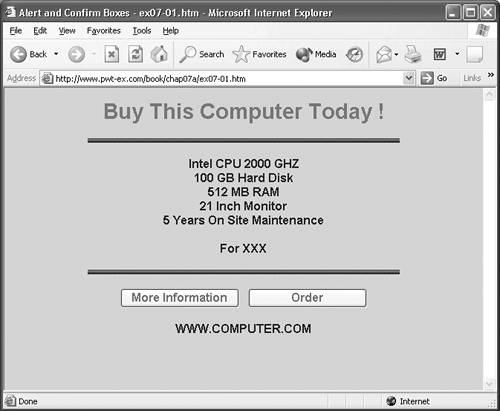
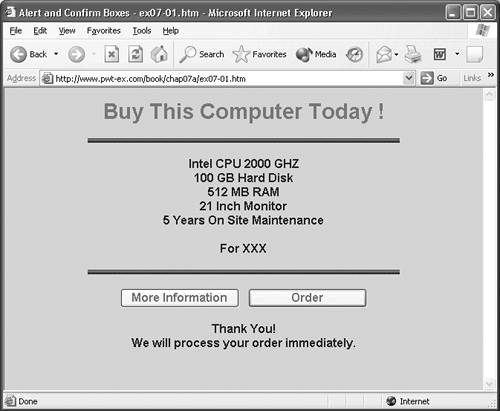
After the main advertising text in lines 4354, we define two buttons called "More Information" and "Order" in this page. The More Information button activates the script function named alertBox() (lines 2731) to open an alert box to display more information about the computer package. The symbol \n in line 29 is used to generate a line break inside the box. This in fact is the C language style (not XHTML) but adopted by the ECMAScript language. The Order button displays the confirm box with two buttons. When the user clicks the OK button, the following message (see lines 1516)
is displayed at the location id=confirmMsg as indicated in line 17. This technique is commonly used to confirm an order on the Web. Some screen shots are shown in Figs 7.5 and 7.6. Figure 7.5. ex07-01.htm
Figure 7.6. Alert and confirm boxes
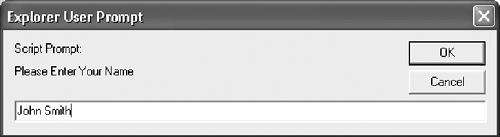
7.2.2 Getting user input with prompt boxesAlert and confirm boxes are useful for simple tasks such as displaying information and taking click actions. For more complex tasks, such as real user input (or typing input), we need something special called a prompt box. A prompt box allows you to prompt a message and read user input. The input text is then returned to the page once the OK button is clicked. The following is a typical example of a prompt box.
var inputName = prompt("Please Enter Your Name","John Smith");
The prompt() function accepts two arguments. The first argument is the prompted message "Please Enter Your Name." The second argument "John Smith" is the default message inside the input field of the prompt box. Once the OK button is clicked, the name John Smith is assigned to the variable as inputName (see Fig. 7.7). You can, of course, enter any other name in the input field. Figure 7.7. Prompt box
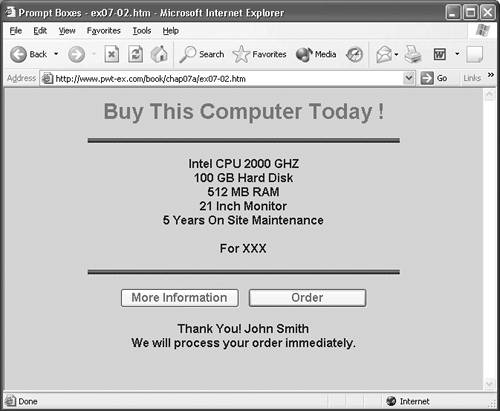
With a prompt box, you can replace the script function orderBox() of lines 825 in ex07-01.htm with the listing ex07-07.txt and call the new example ex07-02.htm.
Listing: ex07-07.txt - Code Fragment For ex07-02.htm

 8: function orderBox()
 9: {
10:  var inputName
11:  var msg
12:  inputName = prompt("Please Enter Your Name","John Smith")
13:  if (inputName !=null && inputName !="")
14:  {
15:    msg='<span class="textSt">Thank You! ' + inputName + '<br />' +
16:                'We will process your order immediately.</span>'
17:    document.getElementById("confirmMsg").innerHTML=msg;
18:  }
19:  else
20:  {
21:    msg='<span class="textSt">WWW.COMPUTER.COM</span>'
22:    document.getElementById("confirmMsg").innerHTML=msg;
23:
24:  }
25: }
Once you click the OK button in the prompt box, the input name will appear just after the "Thank You!" message (line 15) as shown in Fig. 7.8. Figure 7.8. ex07-02.htm
7.2.3 Page redirection and random redirectionOne of the common Web operations is to redirect the visitor to another Web page. Page redirection can be useful when you have, or change to, a new Web address. For example, once the old W3C authority site www.w3c.org had a page redirection to the new address www.w3.org. The following is the body part of our next example (ex07-03.htm) to redirect visitors to another page immediately. Listing: ex07-08.txt - Code fragement For ex07-03.htm 1: <body> 2: <script> 3: location.href="welcome.htm" 4: </script> 5: <div> 6: We would be surprised if you see this message.<br /> 7: This page has been redirected! 8: </div> 9: </body> The simple command location.href in line 3 has the effect of redirecting visitors to another page. In this case, it redirects the visitor to another Web page welcome.htm. The codes in lines 58 should never be executed. In our next example, we show how to construct a page that can redirect visitors randomly to a list of other Web pages.
Example: ex07-04.htm - Random Page Re-direction

 1: <?xml version="1.0" encoding="iso-88591"?>
 2: <!DOCTYPE html PUBLIC "-//W3C//DTD XHTML 1.0 Transitional//EN"
 3:     "http://www.w3.org/TR/xhtml1/DTD/xhtml1-transitional.dtd">
 4: <html xmlns="http://www.w3.org/1999/xhtml" xml:lang="en" lang="en">
 5: <head><title>Random Page Re-direction - ex0704.htm </title></head>
 6: <body>
 7:
 8: <script>
 9:   mySites=new Array("ex0701.htm",
10:                     "ex0702.htm",
11:                     "ex0703.htm",
12:                     "welcome.htm")
13:   siteCount=mySites.length
14:
15:   siteNo=Math.floor(Math.random()*siteCount)
16:   window.location=mySites[siteNo]
17: </script>
18:
19: </body>
20: </html>
First, in lines 912, a new array is created to hold all the Web pages that we want to redirect to. As mentioned in section 7.1.3, each array in ECMAScript has a length property to indicate how many elements are inside it. In our example four elements ranging from 0 through 3 are defined as follows: mySites[0] = ex0701.htm mySites[1] = ex0702.htm mySites[2] = ex0703.htm mySites[3] = welcome.htm The random number generator (line 15) Math.random() generates a random number between 0 and 1. This number is then multiplied by siteCount. The integer part provides the random page number siteNo that we want to redirect to. You now have a page that can redirect visitors randomly to other pages related to your friends' and/or business partners' sites. This technique is an integral part of many Web sites on the Internet. 7.2.4 Title and status bar animationThe title element <title> is used to specify the message in the title bar of the browser window. This message can also be represented by the property of the document object, e.g., document.title ="Practical Web Technologies" At the bottom of the browser window, there is a status bar that can be used to display some useful information. The message inside this bar is a property of the window object window.status="Practical Web Technologies" The next example shows how to manipulate the messages in these bars and to perform simple animations. Consider the following listing ex07-05.htm:
Example: ex07-05.htm - Title & Status Bar Animation

 1: <?xml version="1.0" encoding="iso-88591"?>
 2: <!DOCTYPE html PUBLIC "-//W3C//DTD XHTML 1.0 Transitional//EN"
 3:     "http://www.w3.org/TR/xhtml1/DTD/xhtml1-transitional.dtd">
 4: <html xmlns="http://www.w3.org/1999/xhtml" xml:lang="en" lang="en">
 5: <head><title> Title & Status Bar Animation - ex0705.htm </title></head>
 6:
 7: <body onload="animateMsg()" style="background-color:#000088">
 8: <script>
 9:
10:    var myTitle = "Practical Web Technologies ...."
11:    var i = 0
12:
13:   function animateMsg()
14:   {
15:    myTitleMsg = myTitle.substring(i,myTitle.length)+
16:       myTitle.substring(0,i)
17:    myStatusMsg = myTitle.substring(0,i) +
18:       myTitle.charAt(i).toUpperCase()+
19:       myTitle.substring(i+1,myTitle.length)
20:
21:    document.title = "Title Bar Animation: "+myTitleMsg
22:    window.status = myStatusMsg
23:
24:    if (i < myTitle.length)
25:    {
26:      i++
27:    }
28:    else
29:    {
30:      i = 0
31:    }
32:    setTimeout("animateMsg()",150)
33:   }
34: </script>
35: <span style="font-family:arial;font-size:14pt;color:#ffff00">
36: Title Bar and Status Bar Animation : ex0705.htm
37: </body>
38: </html>
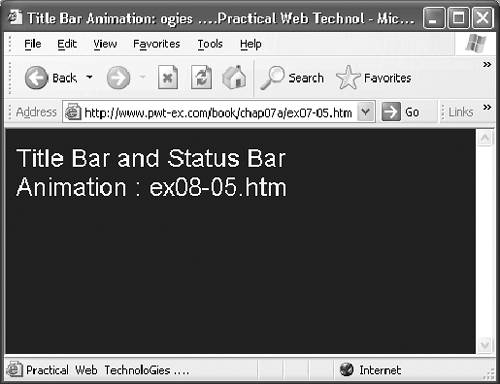
The main operation of this example is the script function animateMsg() defined in lines 1333. First, the page uses a variable called myTitle to store the title message "Practical Web Technologies…." The function animateMsg() is then used to animate the title. In lines 1516, we use a substring method on the string variable myTitle: myTitleMsg = myTitle.substring(i,myTitle.length)+ myTitle.substring(0,i) The first substring returns the message starting from the ith character to the length of the variable. The second substring returns the message from 0 position to the ith character. This means that if you animate this myTitleMsg with the conditional statement on variable i as shown in lines 2431, you will have an animated string on the title bar. The status bar animation in lines 1719 animates, one by one, characters in the string myTitle to upper case. The functions charAt(i) and to UpperCase() (line 18) are standard methods associated with any string (or substring) object. A screen shot of this animated result is shown in Figs 7.9a, 7.9b, and 7.9c. Figure 7.9a. Title bar and status bar Animation
Figure 7.9b. Title bar animation
Figure 7.9c. Status bar animation
|
| Table of Contents | Previous Next |