| Table of Contents | Previous Next |
1.5 Publishing your page on the Internet and search engines1.5.1 Connecting to Web serversLoosely speaking, a machine that runs Web server software is a Web server. This software listens to the network media and responds to any browser request. For example, Apache (http://www.apache.org) is server software freely available on most UNIX (or LINUX) and PC environments. For Microsoft Windows 98/2000/Me/NT and XP machines, the corresponding server software is IIS (i.e., Internet Information Service). Both of them are not difficult to install and use. They are not essential at this moment and will be discussed in Part IV when server technologies are introduced. The main task in this section is to show how to upload Web pages onto our Web site or server so that the pages are available for anyone on the Internet. Before anyone can access or browse your Web pages, you need to upload your pages onto a Web server so that the canonical browserserver interaction can be performed. If you are a home-based computer user with a modem, the chances are that you already have a server provided by your ISP. In general, your ISP may provide you with the following Web server information:
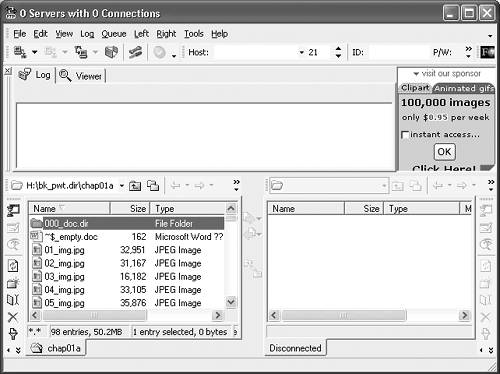
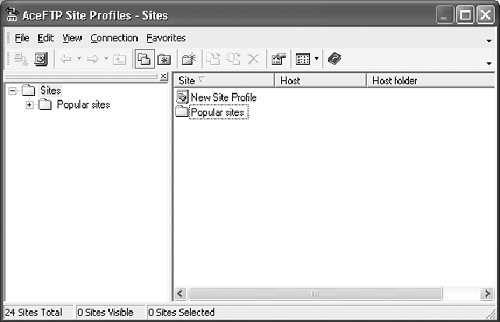
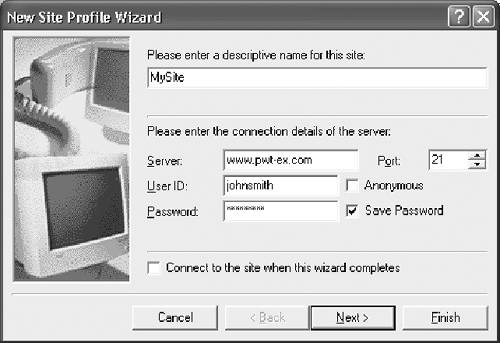
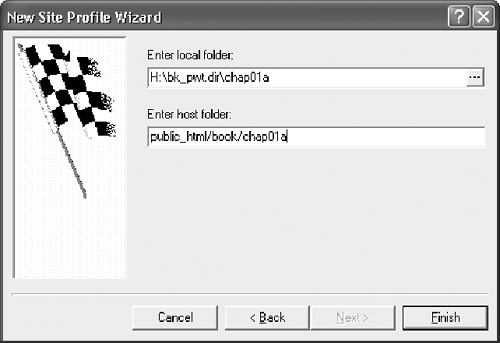
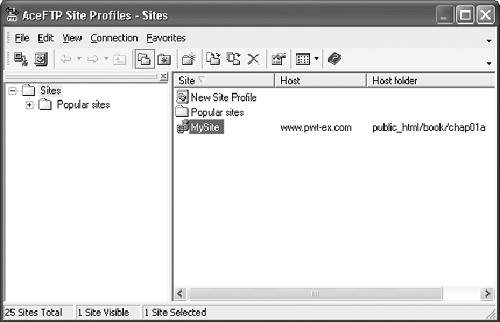
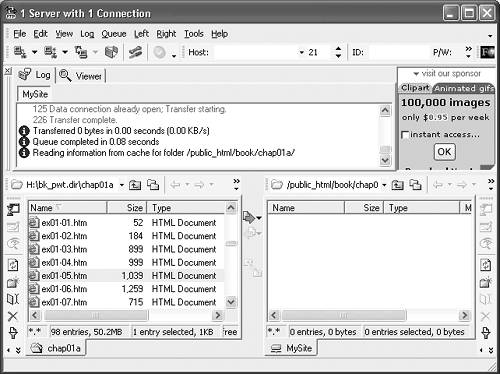
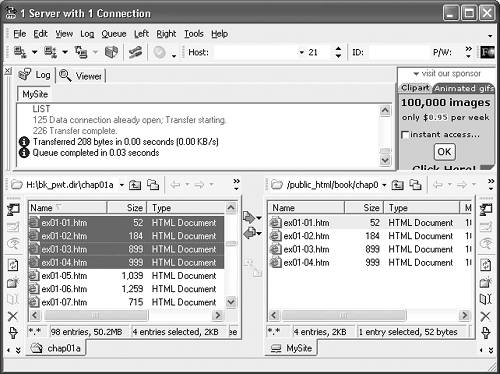
Some ISPs may not provide all the information and some may give you a temporary user name and/or password to save their server access time. Contact your ISP for the data and any alternatives. For UNIX and other platform users, your system administrator should be able to provide you with the information above. Once you have the data, you can upload your Web pages and associated files onto the server using a software called File Transfer Protocol (FTP). 1.5.2 FTP uploading filesLong before browsers or Web technologies, FTP was, and still is, popular software used to download and upload files to another computer on the Internet. Generally speaking, there are two kinds of FTP programs. One is graphics based and the other is known as "console based." Graphical FTP programs are easy to use since you can actually see and control the file transfer interactively. However, these programs are usually machine and operating system dependent. One popular graphical FTP program used on the PC is called "AceFTP 2 Freeware." This software is free and can be downloaded from the official site: freeware.aceftp.com. With freeware, you can distribute the software to your friends provided the entire package is distributed. During the installation process, the software will ask you to obtain the registration code online from the official site. The following is a step-by-step guide on how to use the software to upload some pages onto the Web site.
This software also allows you to create new, delete, or rename folders on both local and remote machines. Now you have some pages on your Web site www.pwt-ex.com and in your directory /book/chap01. Users on the Internet can display your page by the "http" command such as
To use console FTP to connect to your server, all you need to do is to activate it inside a console window. For example, you can activate a DOS window, and issue the following command ftp www.pwt-ex.com where www.pwt-ex.com is the remote server that you want to connect to. This FTP command generates an FTP session for you to upload or download files. A typical FTP session from my desktop for file uploading is listed as follows: Listing: ex01-09.txt 1: P:\>ftp www.pwt-ex.com 2: Connected to www.pwt-ex.com. 3: 220 ProFTPD Server [www.pwt-ex.com] 4: User (www.pwt-ex.com(none)): JohnSmith 5: 331 Password Required for JohnSmith. 6: Password: 7: 230 User JohnSmith logged in. 8: ftp> cd public_html/book/chap01a 9: 250 CWD command successful. 10: ftp> binary 11: 200 type set to I. 12: ftp> mput ex01-3.htm 13: mput ex01-3.htm? y 14: 200 PORT command successful. 15: 150 Opening BINARY mode data connection for ex01-3.htm. 16: 226 Transfer complete. 17: ftp: 507 bytes sent in 0.00Seconds 507000.00Kbytes/sec. 18: ftp> mput balloon.gif 19: mput balloon.gif? y 21: 150 Opening BINARY mode data connection for balloon.gif. 22: 226 Transfer complete. 23: ftp: 4532 bytes sent in 0.05Seconds 90.64Kbytes/sec. 24: ftp> bye 25: 221 Goodbye. 26: P:\> Line 1 is to activate the FTP program with your server address. After the user name and password in lines 4 and 6 respectively, the remote server accepts your login and provides you with an FTP session in line 7. The FTP command cd public_html is used to change the current directory to the Web page directory where all our XHTML files are based. The command in line 10, binary, is to set the FTP communication as binary mode for graphics or non-character transmissions. The file uploading command mput ex013.htm in line 12 uploads the XHTML file ex01-3.htm from the local machine onto the remote server. The "multiple put" command, mput, used here can accept wildcards such as "*.htm" or "*.gif." After you confirm the uploading in line 13, the FTP session will start the actual file transmission. The binary setting in line 10 is important for any picture (or non-character-based) transmission. If your FTP program is not binary mode by default, you need to set it manually. The bye command in line 24 will terminate the FTP session. You can use the "multiple get" command mget to download files from your server or use help to see a summary of all available FTP commands. Sometimes, a graphic (or window-based) FTP program may provide you with a user-friendlier environment. Console-based FTP on the other hand is platform independent. Once you have your Web pages uploaded, you can access them using the usual "http" command. If you have a page called index.htm (or default.htm) in the root directory such as public_html of your site, you can access this file directly using
As another application of FTP, we consider a page that can use FTP to capture, deliver, and publish live Webcam images to Web users. 1.5.3 A simple page to publish live Webcam imagesWhen you visit sites such as those of a safari park, university, college, school, and/or government department, the chances are that you will see a live Webcam delivering live images of animals, buildings, weather, traffic, etc. It is one of the most popular Web applications. Suprisingly, most Webcams and their applications are, in fact, FTP based. The reason is simple: FTP establishes a link between you and the Web server. With FTP uploading, any file (including continuous live video or images) can be put onto the Web site and browsed by the Web community. As a Web application, Webcams can use this advantage to publish live images on the Web and display them in real time. In order to do so, the following tasks are needed:
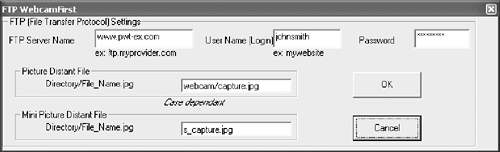
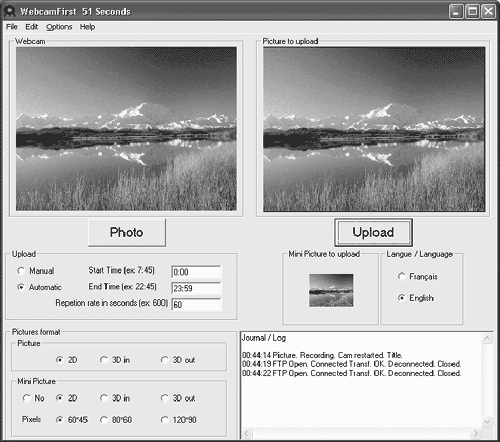
As long as you can perform the tasks above, whether you are using a Webcam or a camera with a capture card does not matter, they are basically the same. Live pictures can transmit to Web users around the world. To get your Webcam picture onto a Web page you should use FTP-based software. A variety of software is available to do this. Some of it is commercial packages offering live chat, stream video, and automatic Web page generation such as Webcam32 (www.webcam32.com). Some free Webcam software is also available and can be downloaded from the Internet. Two of these are Camardes (www.camarades.com) and WebcamFirst (www.webcamfirst.com). After you have downloaded and installed the software, you may need to set up the FTP configuration. Usually it would involve your Web site address, user name, and password. A typical FTP setting on WebcamFirst to send pictures to your Web site (e.g., www.pwt-ex.com) is shown in Fig. 1.35. Figure 1.35. A typical Webcam FTP setting
From this figure, the captured image will be sent to the directory webcam of www.pwt-ex.com as a jpg file capture.jpg. Now, if you run the software, you will see the interaction between the capturing and uploading. A screen shot is shown in Fig. 1.36. Note that the uploading rate in this case is set to every 60 seconds. Figure 1.36. FTP uploading in action
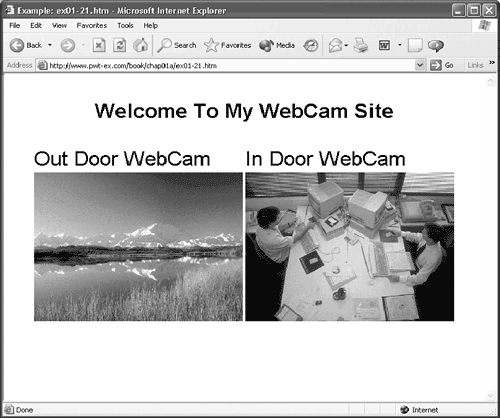
Suppose you have two Webcams (outdoor and indoor) transmitting images to the site www.pwt-ex.com. The outdoor Webcam image is called capture.jpg and the indoor image is capture1.jpg. To write a page to display these images regularly is easy. Consider the following example: Example: ex01-21.htm - A Webcam Page 1: <?xml version="1.0" encoding="UTF-8"?> 2: <!DOCTYPE html PUBLIC "-//W3C//DTD XHTML 1.0 Frameset//EN" 3: "http://www.w3.org/TR/xhtml1/DTD/xhtml1-frameset.dtd"> 4: <html xmlns="http://www.w3.org/1999/xhtml" xml:lang="en" lang="en"> 5: <head><title> A Webcam Page ex01-21.htm</title> 6: <meta http-equiv="refresh" content ="60"> 7: </head> 8: <body style="text-align:center"> 9: <div><br /> 10: <table style="font-family:arial;font-size:24pt"> 11: <tr><th colspan="2">Welcome To My WebCam Site<br /><br /></th></tr> 12: <tr><td>Out Door WebCam</td><td>In Door WebCam</td></tr> 13: <tr><td><img src="capture.jpg"></td> 14: <td><img src="capture1.jpg"></td></tr> 15: </table> 16: </div> 17: </body> 18: </html> This page contains 18 lines of code with one table to arrange the layout of the pictures. In lines 1314, the two Webcam images capture.jpg and capture1.jpg are displayed by the usual image element <img>. The interesting part is the meta element used in line 6: <meta http-equiv="refresh" content ="60"> The meta element simply asks the browser to refresh this page every 60 seconds. This way, you will have the Webcam pictures updated continuously. A screen shot of this example is shown in Fig. 1.37. Figure 1.37. A Webcam page
Now you have a Web site up and running and also have some experience of XHTML pages. The next step is to let your friends and others know the location of your site. You can, of course, email the site address to your friends, but how about others? 1.5.4 Putting your Web site into public search enginesIf you want your Web page (or Web site) to be available for a large number of visitors, one easy option would be to register it on a public search engine. Most of the public search engines are free and can be easily registered online. One popular choice is Yahoo! at
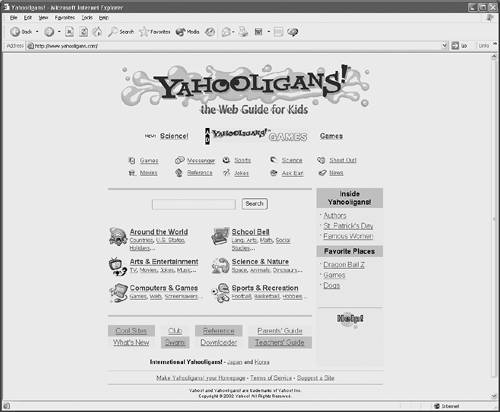
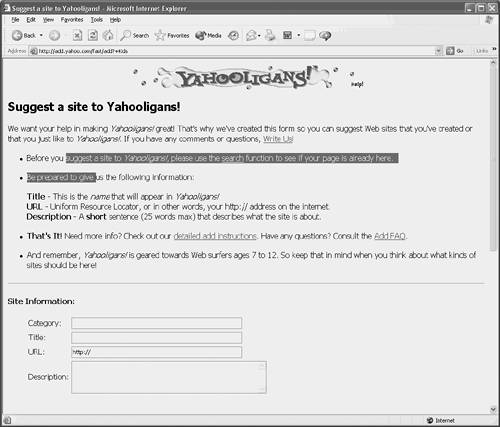
In Yahoo!, you first locate the section or category you want to register under and then activate the "Suggest a Site" option. For example, there is a site for kids in Yahoo! called Yahooligans!. If your Web site is related to young people, you are welcome to register it in the Yahooligans! search engine. Once you have registered, others can search your site with keywords. The screen shot in Fig. 1.38 is the home page of Yahooligans! (www.yahooligans.com). In the bottom right corner, there is a "Suggest a Site" option. If you click on this option, an online registration form appears as in Fig. 1.39. Just follow the instructions on the form and most importantly make sure you have a working Web site address (i.e., http://address). Fill in the site information such as Figure 1.38. Home page of Yahooligans!Reproduced with permission of Yahoo! Inc. 2000 by Yahoo! Inc. YAHOO! and the YAHOO! logo are trademarks of Yahoo! Inc.
Figure 1.39. Registration form for Yahooligans!Reproduced with permission of Yahoo! Inc. 2000 by Yahoo! Inc. YAHOO! and the YAHOO! logo are trademarks of Yahoo! Inc.
Finally, fill in the "Optional Information" at the bottom half of the page and then press the Submit button. It will be good practice to fill in the additional information so that the search site can contact you directly. Once you have registered your site with Yahooligans!, you can test it using their search engine. There are many search engines on the Internet and they are all similar and simple to register with online. |
| Table of Contents | Previous Next |